Overlay AI

Internal tool

So easy it feels like cheating.

Invisible on their screen. Mic on yours.

You get the overlay. The interviewer gets the share. Overlay never appears in Teams, Zoom, Webex, or Meet.

Mac DMG · NSIS installer

Mark · hidden from capture

Hotkeys · rebindable

Same shortcuts as the overlay. Change any of them in Settings — a single number works.

Hide / show Cmd/CtrlShiftH
Capture now Cmd/CtrlShiftS
Copy answer Cmd/CtrlShiftC
Think harder Cmd/CtrlShiftJ
Microphone Cmd/CtrlShiftM

Live use

Watch someone capture a question and get the answer.

Real sheet on a MacBook. Small overlay in the corner. They never see it on the share.

Using Overlay AI Autoplay · loop

The advantage

You see the overlay. They never do.

Same Teams share. Your laptop shows Mic and the answer. Their screen looks like a normal call. They do not see Overlay.

Your screen

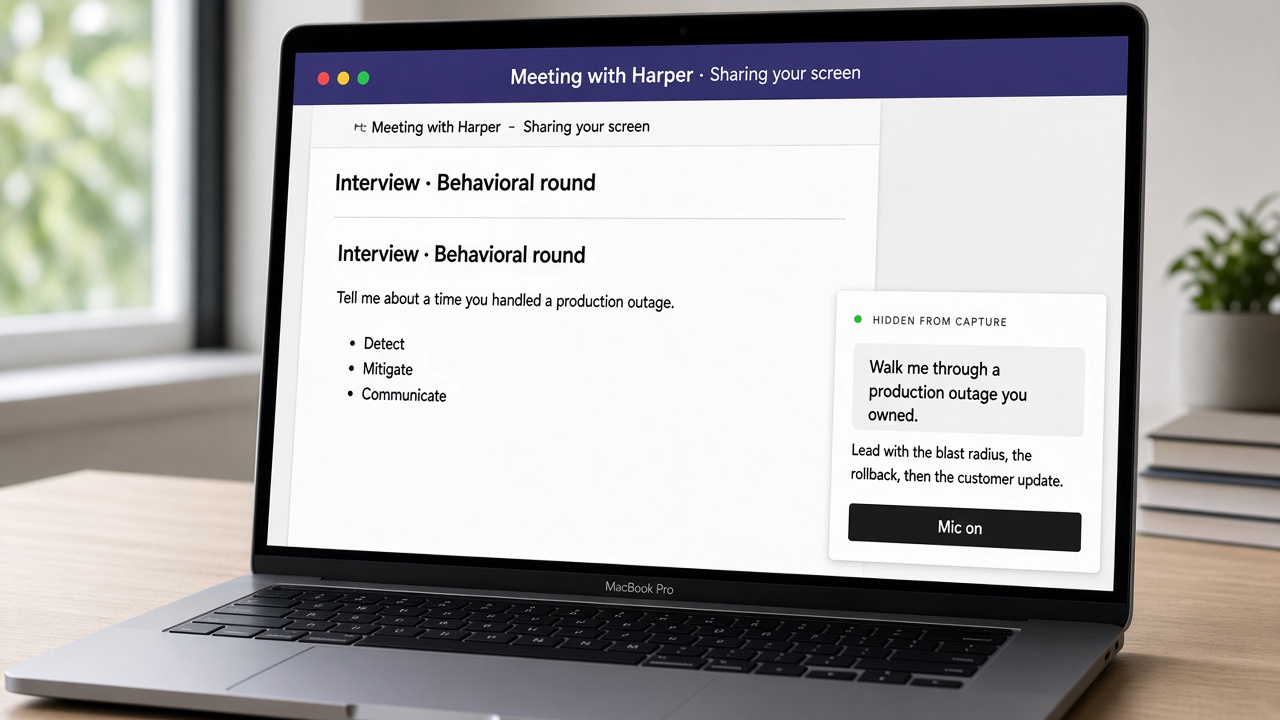
Mic on. You see the transcript and what to say.

Your laptop during a Teams screenshare. Overlay AI is visible with Mic on.

Your screen

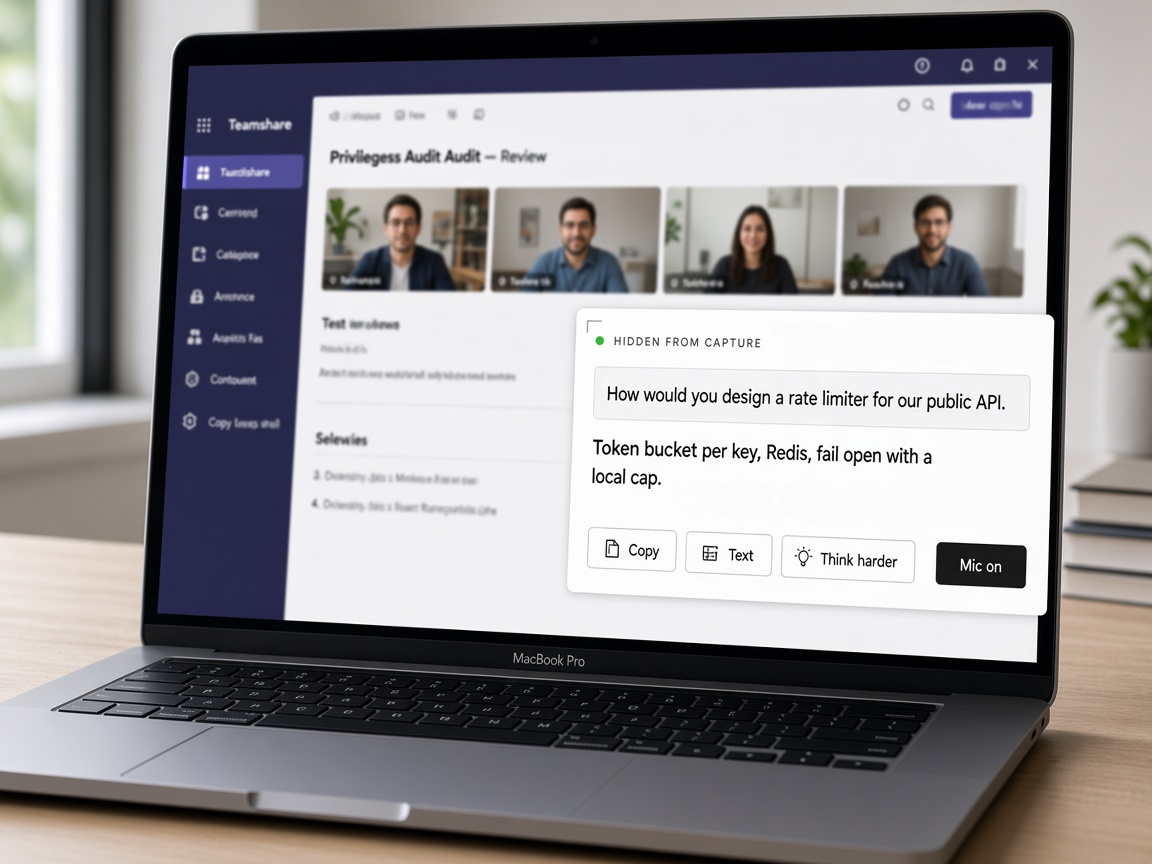
Close up. Overlay stays on your display only.

Close view of Overlay AI with Mic on and a drafted answer.

Their screen

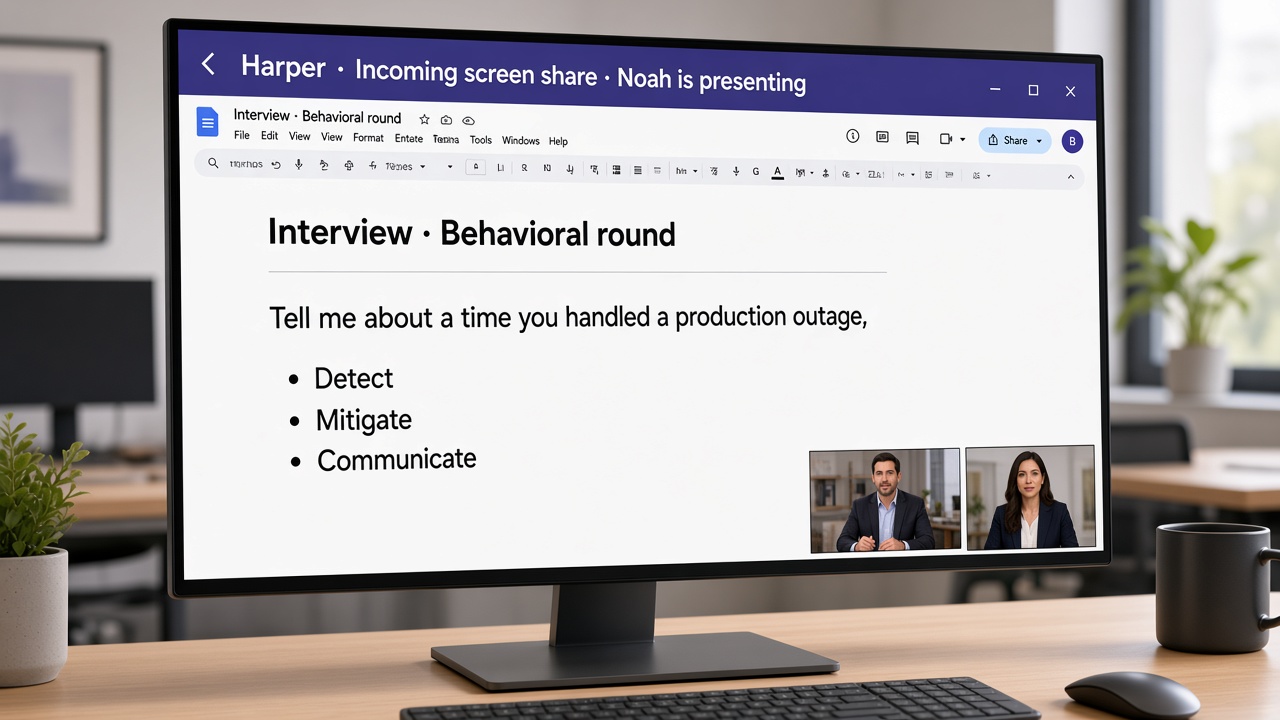
Looks like a normal Teams share. They don’t see Overlay, the transcript, or the answer.

Interviewer Teams window. Incoming screenshare looks normal with no overlay.

Example · Multiple choice

The question is on the sheet. The answer sits on top.

Left is your screen: overlay on top of the sheet. Right is their screen: the share only. Overlay does not appear in Zoom, Teams, Meet, or Webex.

Your screen

Client portal · access review

IT audit knowledge check

How often should user access reviews be performed for SOX relevant systems?

  1. A. Only when an employee is terminated
  2. B. Quarterly access reviews
  3. C. Once every five years
  4. D. Never, if MFA is enabled

Their screen · share

Sharing entire screen · Zoom

IT audit knowledge check

How often should user access reviews be performed for SOX relevant systems?

  1. A. Only when an employee is terminated
  2. B. Quarterly access reviews
  3. C. Once every five years
  4. D. Never, if MFA is enabled

Overlay omitted from capture APIs

How it works

Capture the sheet. Or listen to the room.

Your screen

IT audit knowledge check

How often should user access reviews run?

  • A. Only when an employee is terminated
  • B. Quarterly access reviews
  • C. Once every five years
  • D. Never, if MFA is enabled

01

Capture

Hit the hotkey for the sheet, or Mic for spoken questions. Audio and frames stay in RAM.

Your screen

IT audit knowledge check

How often should user access reviews run?

  • A. Only when an employee is terminated
  • B. Quarterly access reviews
  • C. Once every five years
  • D. Never, if MFA is enabled

02

Analyze

Top AI thinking reads the frame and returns the letter plus the option text. First tokens in under three seconds.

Client view · Zoom

IT audit knowledge check

How often should user access reviews run?

  • A. Only when an employee is terminated
  • B. Quarterly access reviews
  • C. Once every five years
  • D. Never, if MFA is enabled

Overlay omitted from capture

03

Answer

You see B and what B is. They see only the question. Click Text if you need a copyable explanation.

Pricing

Pick how you work. Pay only for what you use.

Chat is capture answers. Pro adds the microphone. Annual is the full product, paid once a year at the $15 monthly rate.

Chat

Chat

$15per month

  • Screen capture answers
  • Live overlay chat
  • Invisible in the share
  • Microphone on calls not included

Most popular

Pro

$25per month

  • Everything in Chat
  • Microphone on calls
  • Live transcript + spoken reply

Annual

Annual

$180per year

  • Everything — chat and microphone
  • Billed once as a lump sum
  • $15 / month value for the full product

After checkout you get a license and a receipt email. Paste the license in Overlay AI Settings. Cancel anytime in Manage billing — that stops the next charge and does not refund the current period. By paying you agree to the Terms.

macOS

Mac DMG

  1. 01 · Download and drag Overlay AI to Applications.
  2. 02 · Open the app. Gatekeeper may warn until Developer ID signing is attached.
  3. 03 · Grant Screen Recording, Microphone, and Speech Recognition.
  4. 04 · Run the invisibility self-test. ⌘⇧H hides, ⌘⇧S captures, ⌘⇧M is the mic.

Windows

NSIS installer

  1. 01 · Run the installer. SmartScreen may warn until Authenticode signing is attached.
  2. 02 · Open Overlay AI from the Start menu and complete setup. The tray icon lives in the notification area.
  3. 03 · Run the invisibility self-test. Windows 10 2004+ is required for full exclusion.
  4. 04 · Ctrl+Shift+S captures. Ctrl+Shift+H hides. Ctrl+Shift+M is the mic. Rebind any of them in Settings.

Security

Top AI thinking. Invisible in the share.